
Blog
CS2 Training Server Setup Guide
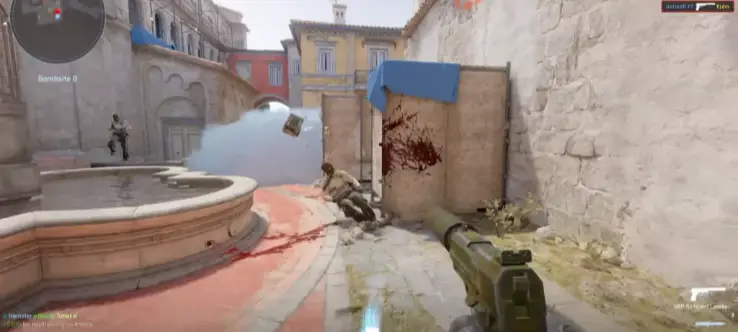
How to Create a Training Server in CS2
Welcome to the ultimate guide on setting up your personal CS2 training server! Whether you’re a seasoned player or a newcomer, a customized practice environment will help you improve your skills significantly.What You’ll Find in This Guide
In this guide, you’ll find:
- The latest training config for CS2.
- Useful binds to simplify your practice process.
- A step-by-step tutorial for setting up your training server.
How to Create a Training Config in CS2
To create your own training config, you’ll need to make a file containing commands that automatically apply the necessary settings.
Create the Configuration File
On your desktop, create a text file (*.txt). Rename it to prac.cfg (make sure to change the extension!). Open it with Notepad or any other text editor.Add the Commands
Paste the following lines (you can adjust the settings as needed):// CS2 Training Config
bot_kick
mp_warmup_end
sv_cheats 1
mp_limitteams 0
mp_autoteambalance 0
mp_maxmoney 60000
mp_startmoney 60000
mp_buytime 9999
mp_buy_anywhere 1
mp_freezetime 0
mp_roundtime 60
mp_roundtime_defuse 60
mp_respawn_on_death_ct 1
mp_respawn_on_death_t 1
sv_infinite_ammo 1
sv_showimpacts 1
sv_showimpacts_time 10
ammo_grenade_limit_total 5
sv_grenade_trajectory_prac_pipreview 1
mp_restartgame 1
echo "Training Config Loaded!"
Save the file (Ctrl + S).
Place the Config in the Correct Folder
Move prac.cfg to the folder:Steam\steamapps\common\Counter-Strike Global Offensive\game\csgo\cfg
Launch the Training Config in CS2
Open the console in CS2 (press ~) and enter:exec prac.cfg
Done! Your settings are now applied.
How to Launch a Training Server in CS2
(Guide for offline practice with or without bots)
Method 1: Through the Game Menu (Quick Start)
Launch CS2 and click “Play” in the main menu. Select “Practice” → “Default.” Choose a map (for example, de_dust2) and click “Go.” After loading, open the console (~) and type:exec prac.cfg
If the console doesn’t work, enable it in the settings: “Options” → “Game” → “Enable Developer Console.”
Important: You need to reload the config whenever you change the map or restart the server.
Method 2: Local Server via Console (Advanced Setup)
If you need full control (for example, to configure bots or team training), open the console (~) and enter:map de_dust2
(Replace de_dust2 with your preferred map.)
Once the server starts, apply your config:
exec prac.cfg
Additional Bot Commands:
Add bots:
bot_add — add one bot.
bot_add_ct / bot_add_t — add a bot to a specific team.
bot_difficulty 3 — set bot difficulty (0–3).
Freeze bots (for grenade or position training):
bot_stop 1 — freeze all bots.
bot_stop 0 — unfreeze bots.
Conclusion
A CS2 training server with a personal config is a great way to practice aim, grenades, positioning, and decision-making without the pressure of ranked matches. Create your prac.cfg, experiment with settings, add useful binds, and train confidently for real matches.
Keywords: cs2 training server, cs2 training config, exec prac cfg, cs2 practice server, cs2 aim training, cs2 grenade training, cs2 practice maps, cs2 cfg, cs2 config, cs2 cases, cs cases, cs2case, cs2 case site, cs2 opening, cs2 skins