
Blog
How to Change Hand Position in Counter-Strike 2
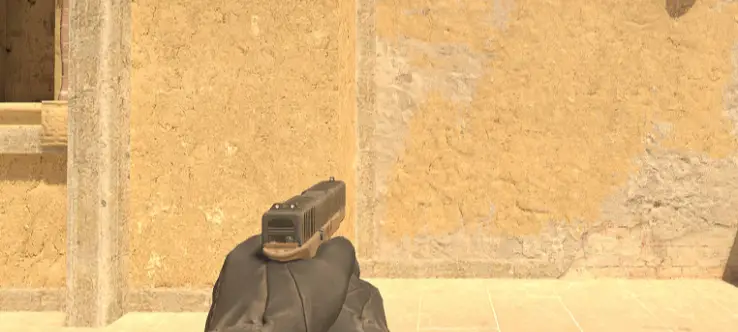
How to Change Hand Position in Counter-Strike 2
In this guide, you’ll learn how to switch your weapon hand in Counter-Strike 2 — from enabling the left-hand view to setting up custom binds for quick switching between sides.Why Change Hand Position
Changing your hand side can improve visibility when peeking certain angles. For example, when entering B site on Dust 2, using the left hand makes your model less exposed, giving a slight tactical advantage.
How to Set Left Hand in CS2 (In-Game Settings)
- Open CS2 and click the gear icon in the top-left corner.
- Go to Game → Item.
- Find Preferred first-person hand and select Left.
Console Commands for Hand Switching
Enable the developer console and use one of the following:
- switchhands — toggles hands alternately.
- switchhandsleft — sets left hand.
- switchhandsright — sets right hand.
Useful Hand-Switching Binds
Toggle Hands
bind "H" "switchhands"Set Left Hand
bind "J" "switchhandsleft"Set Right Hand
bind "K" "switchhandsright"Different Hands for Weapons and Knife
Weapons Right, Knife Left
bind "1" "slot1; switchhandsright"; bind "2" "slot2; switchhandsright"; bind "3" "slot3; switchhandsleft"; bind "4" "slot4; switchhandsright"; bind "q" "lastinv; switchhands";Weapons Left, Knife Right
bind "1" "slot1; switchhandsleft"; bind "2" "slot2; switchhandsleft"; bind "3" "slot3; switchhandsright"; bind "4" "slot4; switchhandsleft"; bind "q" "lastinv; switchhands";Reset to Default
bind "1" "slot1"; bind "2" "slot2"; bind "3" "slot3"; bind "4" "slot4"; bind "q" "lastinv";Conclusion
Switching hand position in CS2 helps tailor your gameplay for better comfort and visibility. While the new animation when changing hands adds realism, it slightly delays shooting — consider this when using hand-switch binds during active fights.
Keywords: cs2 hand switch, left hand cs2, cs2 binds, switchhands command cs2, cs2 viewmodel, cs2 left hand command, cs2case, cs2 site, cs2 cases